Managing printers from Control Panel

Managing printers from Control Panel

What is it?

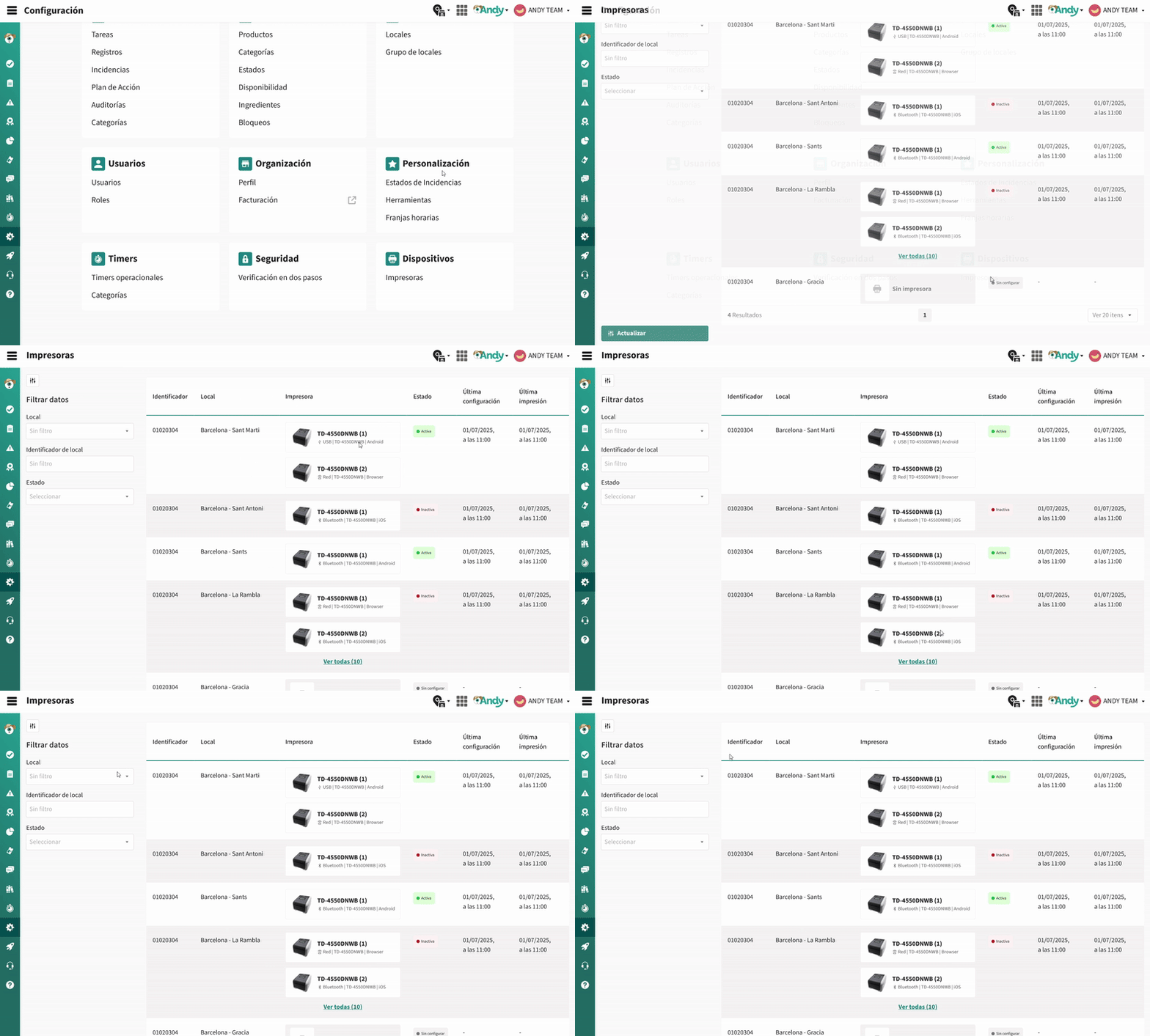
It is a section within the Control Panel that allows you to view and manage all printers configured on premises. From here you can check the status, model and platform of each printer without having to access local. This feature is available for roles of level 4 or higher.


What is it for?

  • Centrally consult printers from all premises.
  • See on which platform each printer is configured (Android, iOS or browser).
  • Know when the last impression was and whether the printer is active.
  • Identify premises without configured printers.
  • Easily filter by location, status or identifier.

How to access?

  1. Enter theControl Panel.
  2. Go to the side menu and clickConfiguration.
  3. Select the new sectionDevices
  4. Click on the tabPrinters.


What will you find?

  • Table of printersgrouped by local:
    • Identifierof the premises
    • Nameof the premises
    • Printer: device name, connection type, model and platform
    • State: active, inactive or unconfigured
    • Configured in: date and time of installation
    • Last printing: date and time of last impression

  • Filters available:
    • By name of the premises
    • By identifier
    • By state: active, inactive, unconfigured

  • Expandable visualization: if a venue has more than two printers, it is possible to broaden the view to see them all.


Info
💡 Tip: If the status column has no information, it means that this place does not yet have any linked printers.

Benefits

  • Greater visibility and control over the configuration of your devices
  • Time saving by not having to check premises per premises
  • Better operational tracking for IT teams and brand managers
  • Rapid detection of premises without printers
  • Clear interface, with filters and measures useful for making decisions

Ready! Now you may be interested inEncoding printer errors

    • Related Articles

    • Approved printers for tagging with Andy

      Below is a list of approved printers for food labeling with Andy: Brother Printers TD-4550DNBW via BT Buy on the Andy Store TD-2125DNBW* via BT *Currently not available for iOS Buy on the Brother Store This article explains “How to Link Brother ...
    • Where to find the serial number in printers

      You can find your printer’s serial number following these simple steps: The serial number ("SER.NO") is located on a label attached to the back of the printer or inside the label roll compartment or the tape cassette compartment. For instance: Models ...
    • Brother Printer Guarantees with Andy

      This article explains the details of two types of warranties offered by Brother: CORE and ADVANCED. What are their main differences? CORE: The Core warranty can be extended from 3 to 4 or 5 years. You will be covered in case of failure for up to 5 ...
    • What can I use the Dietarium for?

      Andy's Logbook is an internal communications tool that helps you in several areas of the management of your business, enabling a more efficient and effective communication with your team. What can I use this tool for? Internal Communication ...
    • What can I use Audits for?

      The purpose of the Andy's Audit Tool is to diagnose and identify which activities are being carried out as expected, which are not, and which can be improved to prevent potential risks. In other words, the Audits tool helps you understand how your ...

    Do you need more help?

    We’re here for you. You can easily reach us through the following channels.


    Phone
    +34 932 71 56 44  | Mon-Fri 8:00 a 20:00

    WhatsApp
    +34 684 46 60 17