Link Brother TD-4555 printer with Andy via WI-FI
 Before starting the process, check this article to find out what are thePrinters approved for labeling with Andy.
Enable Brother Printer Wi-Fi Mode
- PressMenu
PressTo select:
- a.Wlan. PressOk.
b.Act. /Desact. PressOk. - Press
to selectActivated. PressOk
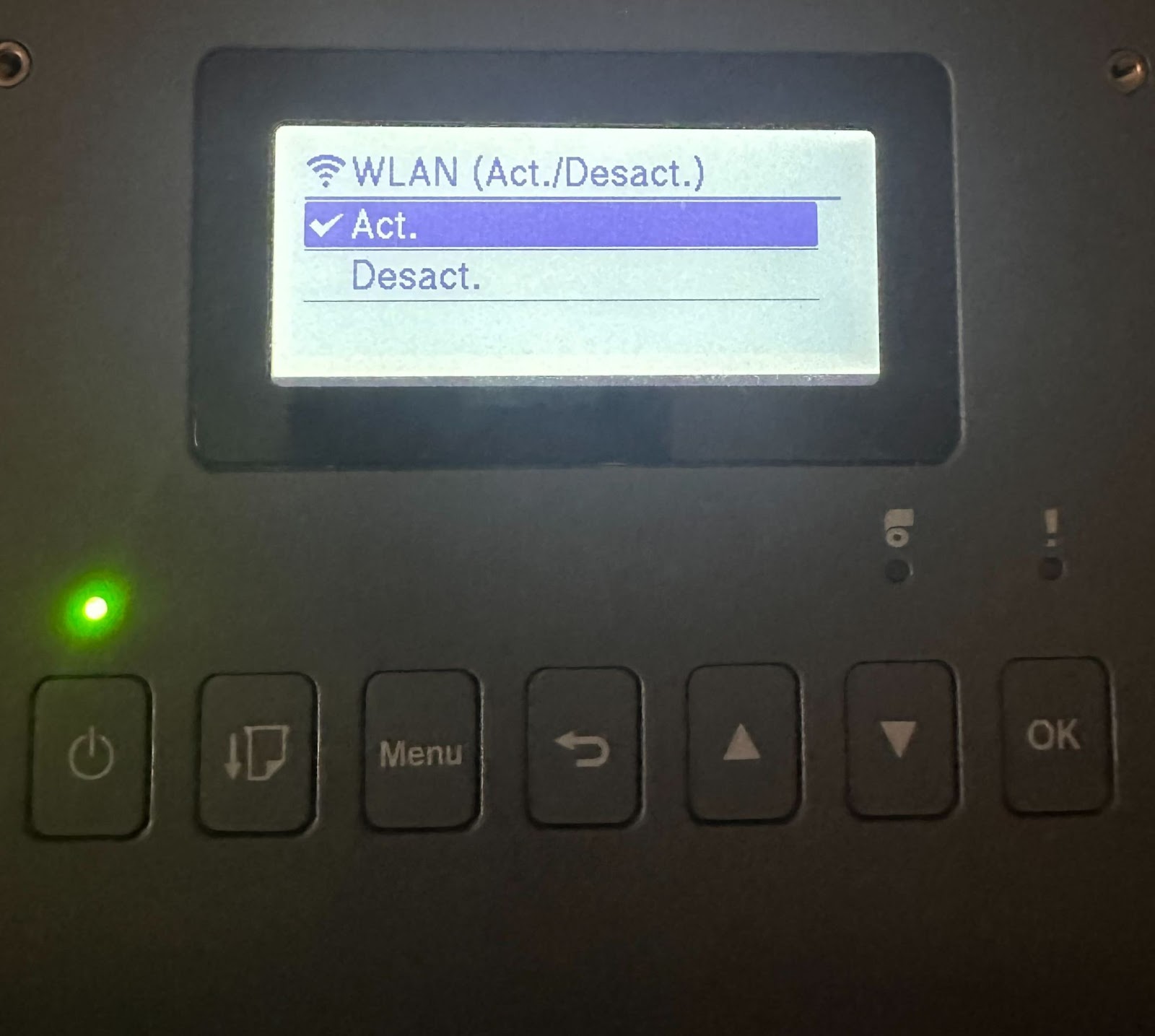
Link the printer to our Wi-Fi network
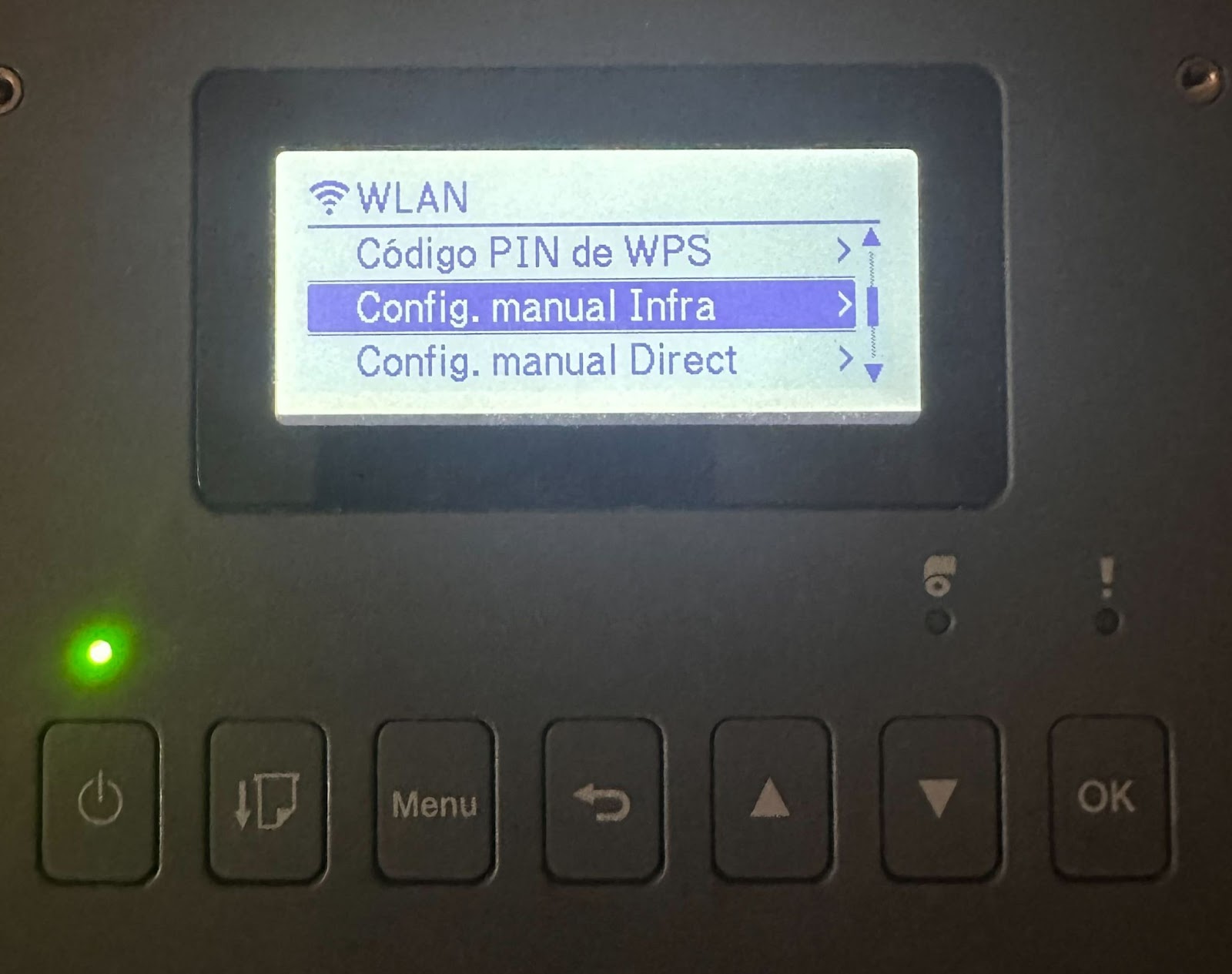
InWlan>Config. Manual Infra:
(a) SelectingYour Wi-Fior select"Other..."andWrite the name of the network.
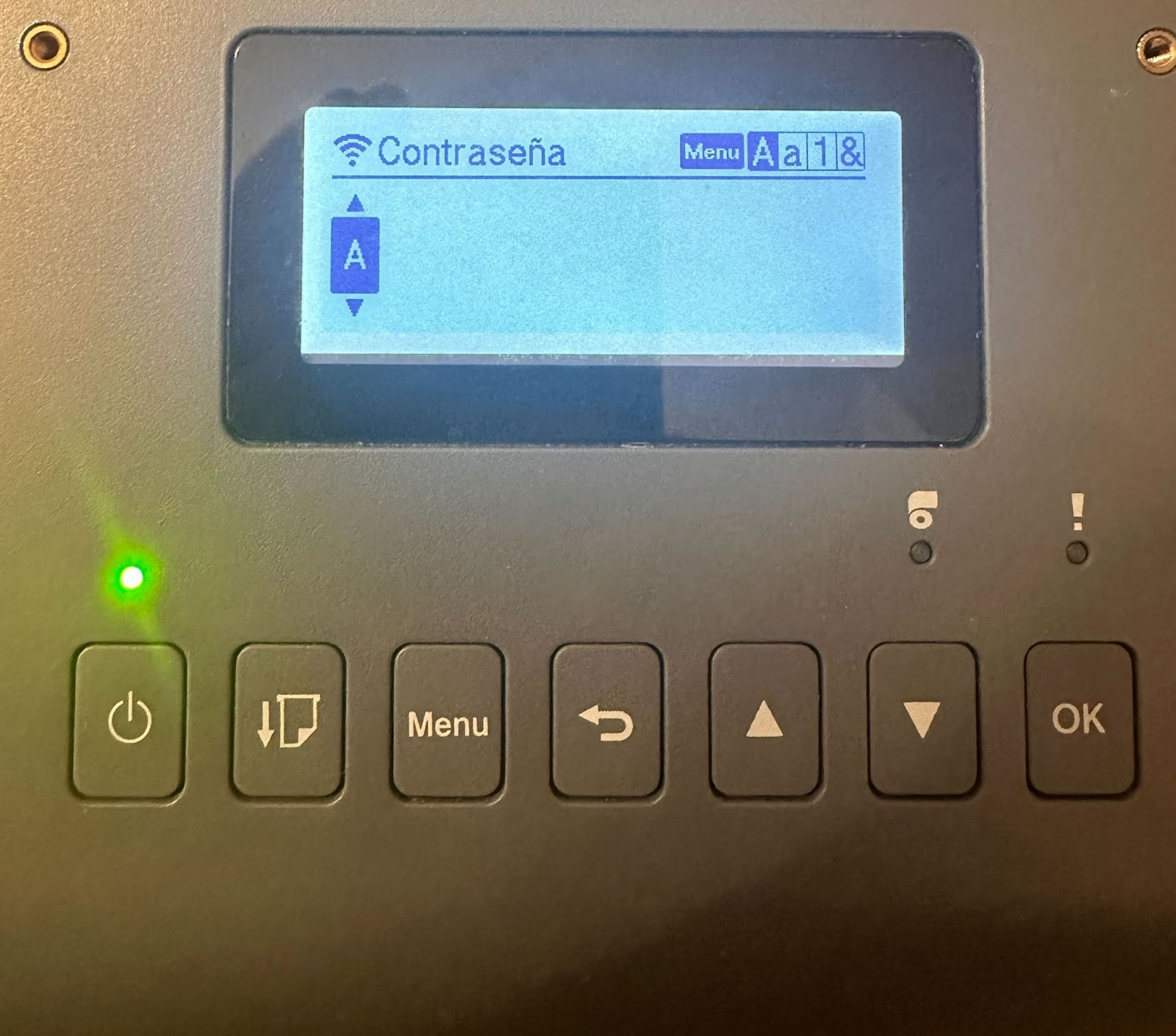
(b) Introducing thePassword for Wi-Fisailing withandOk(use the button ofMenuserves to vary between capitals, lowercase, numbers and symbols)
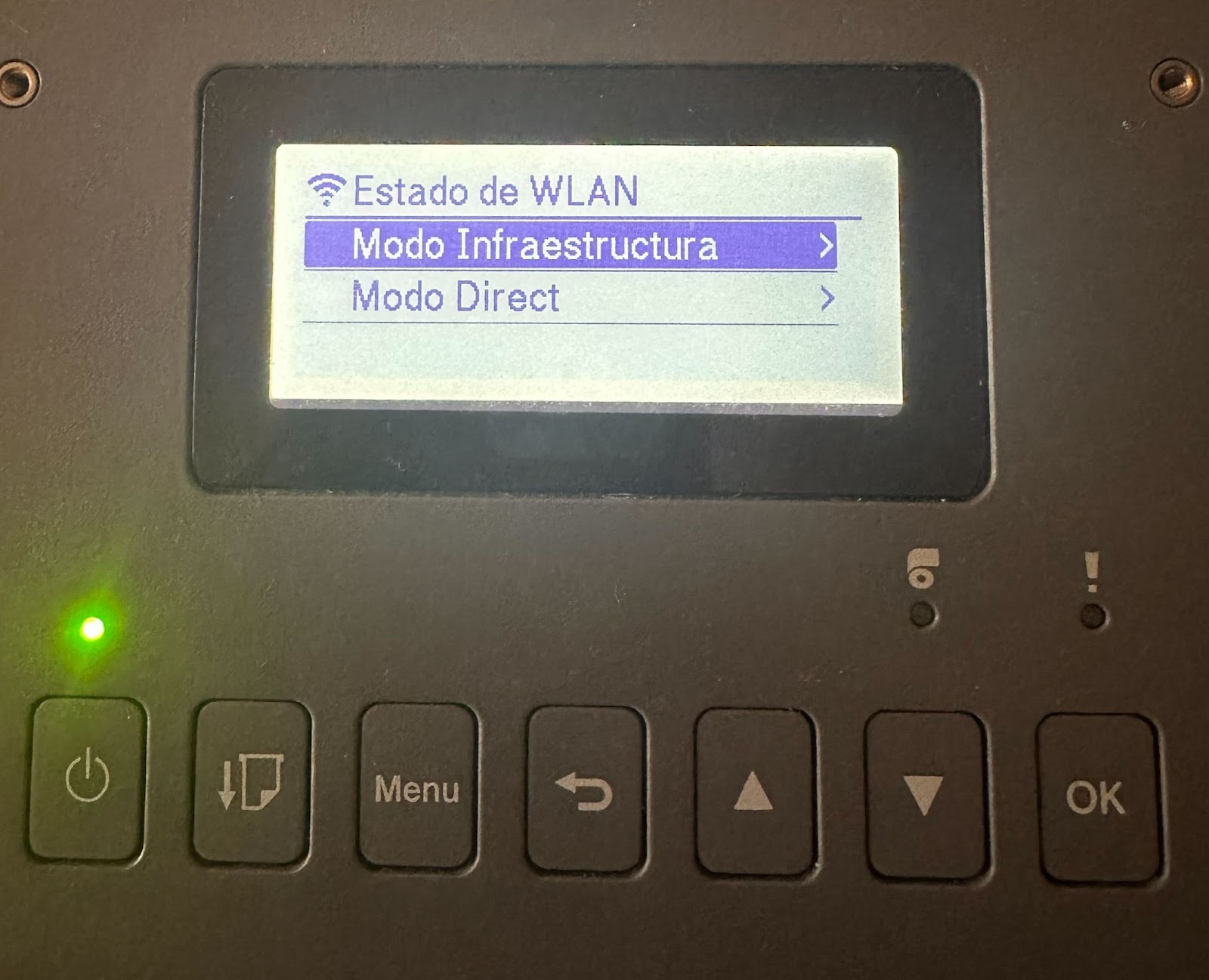
On the printer, tap onMenu > WLAN > WLAN status > Infrastructure Mode
The fact that interests us is that ofIP Addr, since we must introduce it in Andy (something similar to 192,168.1.1)
Link Brother Printer with Andy
If you enter the Labeling tool for the first time, you will get the message "The printer is not configured yet". Click on "A for it" and will take you to the Printer Settings section.In Andy, access from the main menu toConfiguration > PrinterAnd click on:Select your printer: Td-4550dnwb
SelectPrinting Method via Wi-Fi
Enter the addressIP Addressof the printer in ANDY (in the printer: Menu > WLAN > WLAN status > Infrastructure Mode > IP Address)
Name the printer (optional)
Click onSave
Configure commands over the network
Once the printer has been configured in Andy, you need to enable commands over the network.
In Settings > Printer, click Security Settings.
The printer’s administration page will open automatically.
Log in using the credentials found on the printer label.
Go to Administrator > Command Security.
Enable the Command Security option.
Save the changes.
Restart the printer