Link Brother TD-2350 printer with Andy via WIFI
 Before you start the process, check out this article for what theApproved printers for tagging with Andy. For now, this model is not compatible with iOS devices.
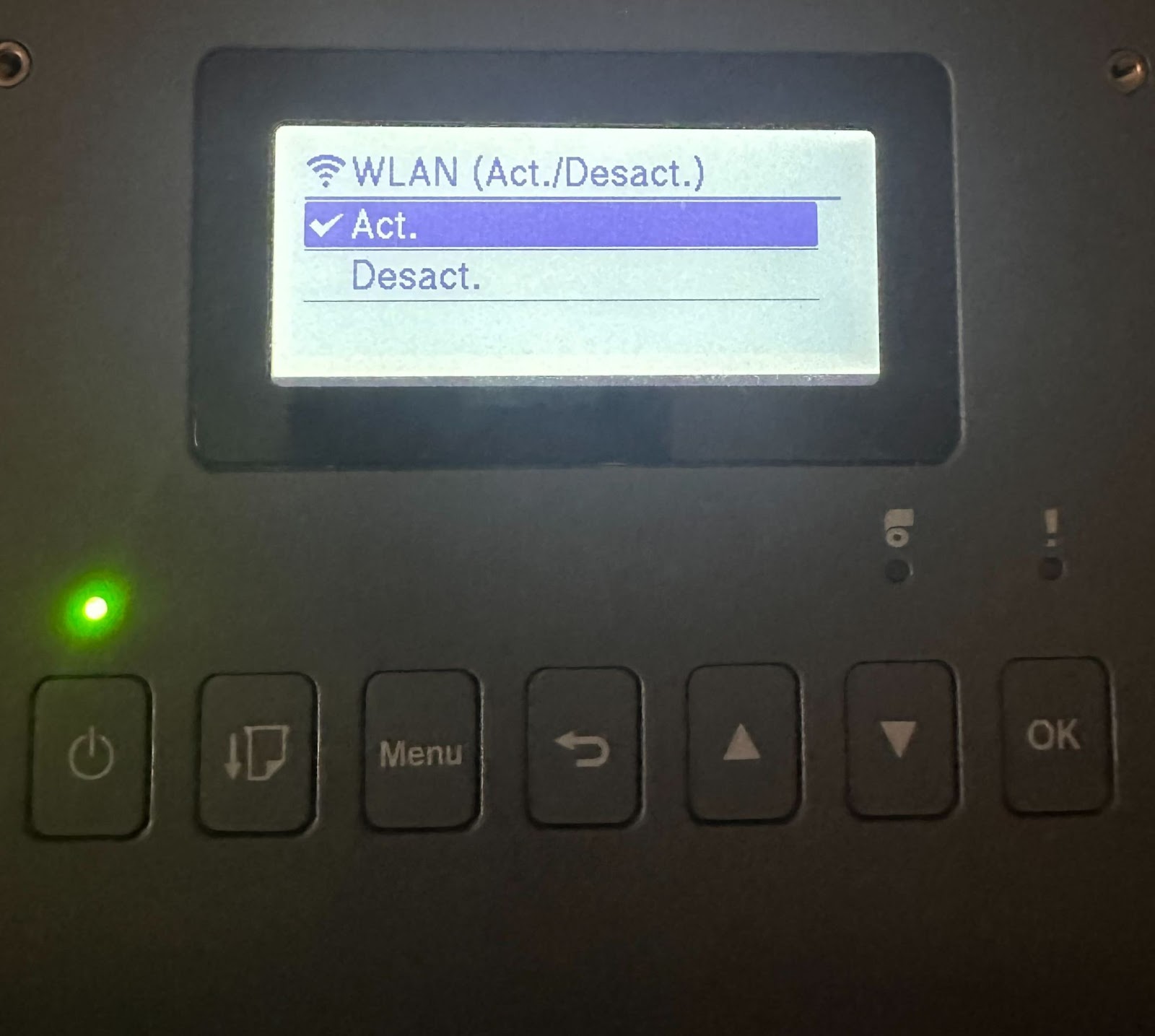
Activate Brother Printer WI-FI Mode
- PressMenu
Pressto select:
- a.Wlan. PressOk.
b.Act. /Desact. PressOk. - Press
to selectActivated. PressOk
Link the printer to our WI-FI network
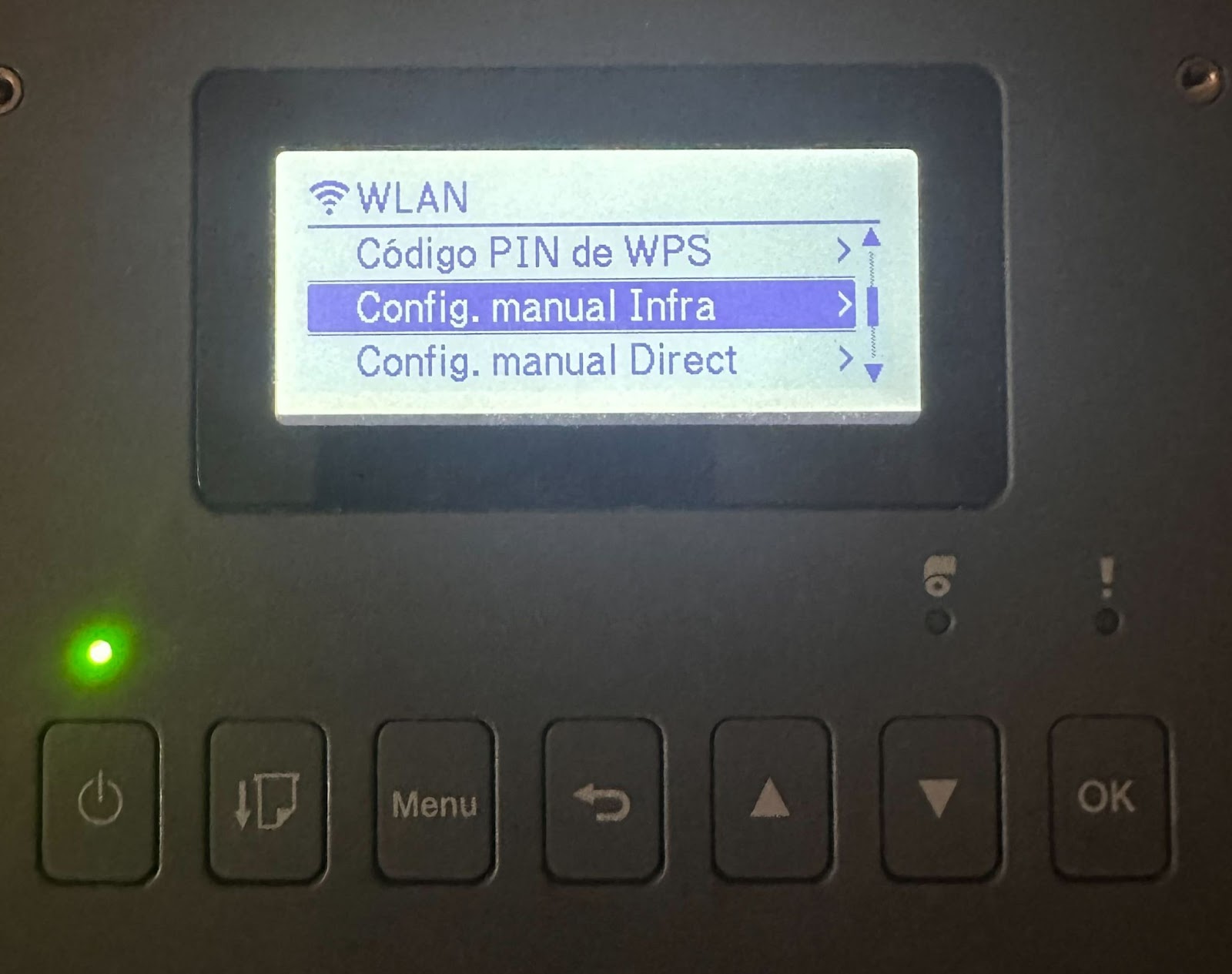
InWlan>Config. Manual Infra:
a) Selectyour wifior select"Excellent food and service..."andwrite the name of the network.
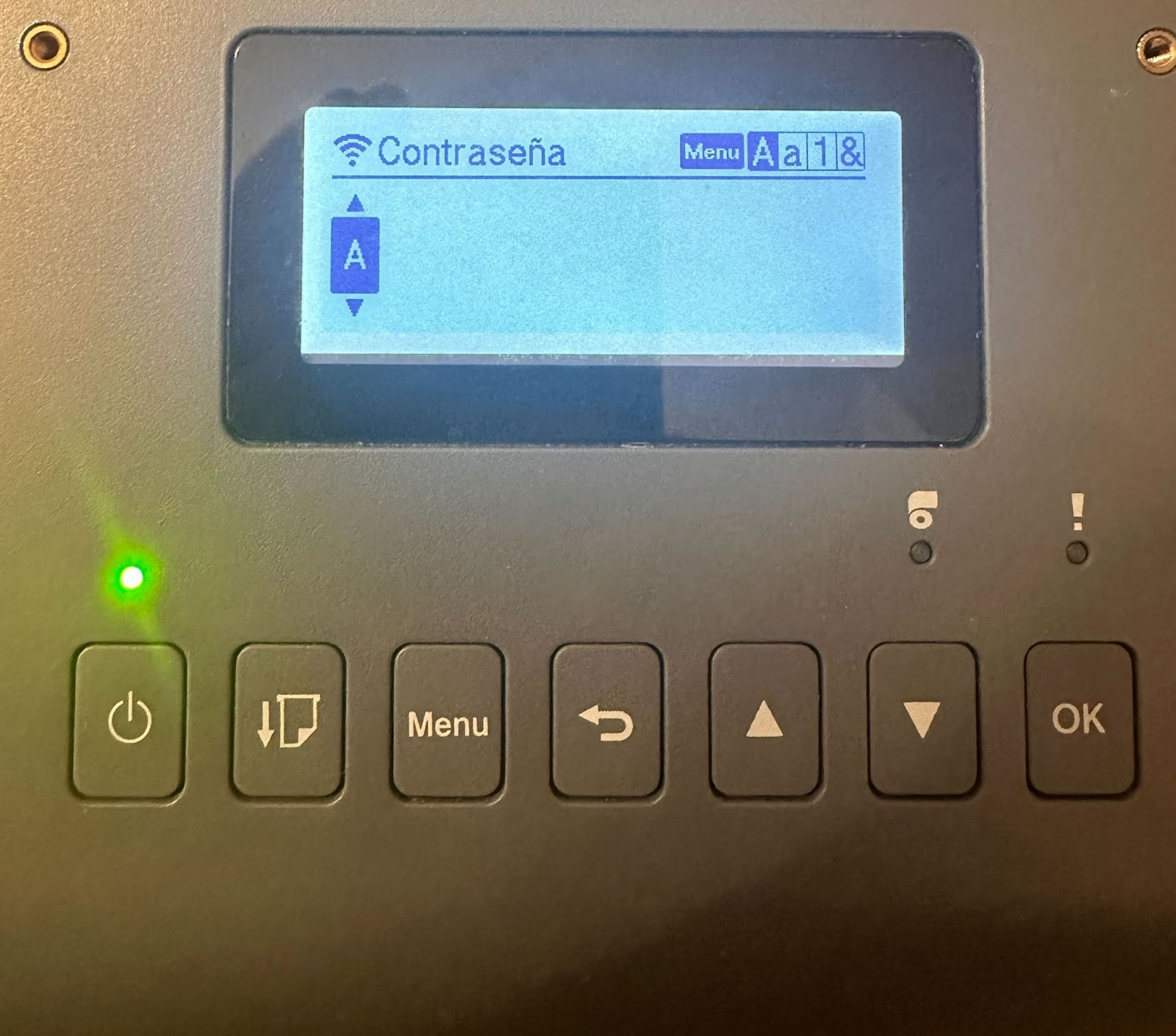
(b) Introduce thewifi passwordsailing withandOk(use theMenuserves to vary in uppercase, lowercase, numbers and symbols )
On the printer, tapMenu > WLAN > WLAN Status > Infrastructure Mode
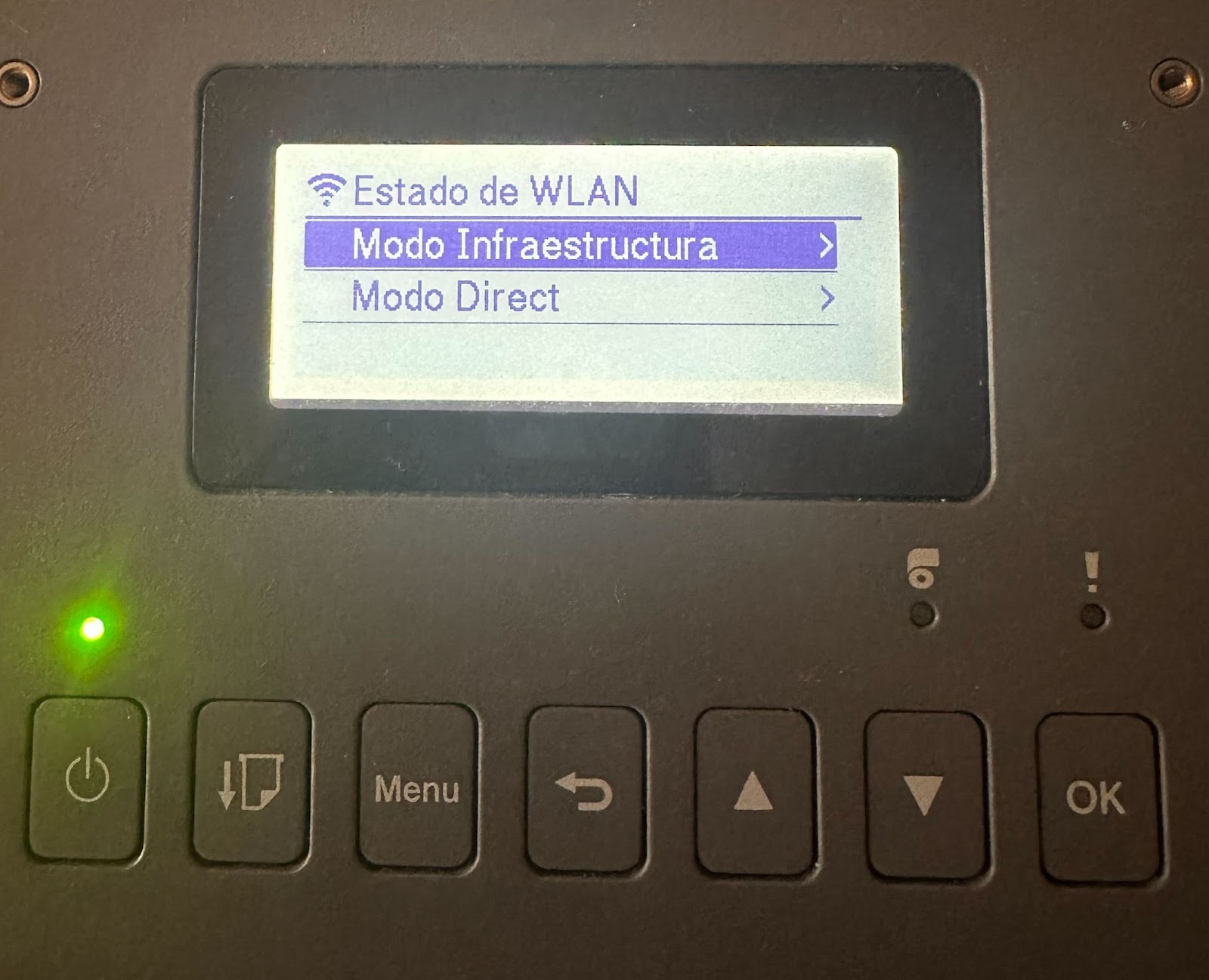
The fact that interests us is theIP Addrbecause we will have to introduce it to Andy (something similar to 192.168.1.1)
Link Brother printer with Andy
If you first enter the Labelling tool without configuring you will get the message "The printer is not yet configured". Click on "There's it" and it will take you to the Printer Settings section.In Andy, access from the main menu toSettings > Printerand tap on:Select your printer: Td-2350
Selectthe printing method via WI-FI
Please enter the addressIP Adressprinter in ANDY (on printer: Menu > WLAN > WLAN Status > Infrastructure Mode > IP Adress)
Name the printer (optional)
ClickSave
Configure Network Commands
Once the printer has been configured in Andy, you must enable network commands.
In Settings > Printer, click Security Settings.
The printer's administration page will open automatically.
Sign in using the username and password shown on the printer's label.
Go to Administrator > Command Security.
Enable Command Security.
Save the changes.
Restart the printer
Once these steps are completed, the printer will be ready to receive commands over the network.